 Zopy
Zopy Product data setup
Touchmark's product pages fill their chapters, such as the Supplement Facts label, from product data. Start with the minimum setup: about 10 minutes in your Shopify admin and the theme editor, with nothing to install. The other chapters work the same way. Metaobjects, the full setup, add the rest when you want them.
Minimum setup: about 10 minutes, in the Shopify admin
This gives a product a real Supplement Facts label from rows you type on the product. Everything happens in the Shopify admin and the theme editor. Do steps 1 to 3 once, and step 4 for each product.
- Set the product's category. In Products, open the product. Under Category, choose Vitamins & Supplements or the subcategory that fits, such as Vitamin D, and click Save. The category makes it a supplement product, so your compliance statement shows on it. Fill in the category fields Shopify then lists under it, such as Ingredients, Form and Dietary preferences: they become rows of the Specifications table.
- Create two product fields. Go to Settings > Custom data (called Metafields and metaobjects in newer admins), click Products, then Add definition.
- Name Supplement Facts text. Shopify fills in the namespace and key,
custom.supplement_facts_text. Click Select type, choose Multi-line text, keep One value, and click Save. - Back on Products, click Add definition again. Name Serving size (
custom.serving_size), type Single line text, one value. Click Save.
- Name Supplement Facts text. Shopify fills in the namespace and key,
- Connect them in the theme editor. Go to Online Store > Themes and click Customize. In the menu at the top of the editor, choose Products > Default product. In the sidebar, under Product details, select the Supplement Facts block. Under Without a Supplement Facts entry:
- Beside Label rows, click Connect dynamic source and choose Supplement Facts text.
- Beside Serving size, click Connect dynamic source and choose Serving size.
- Enter label rows on each product. Open the product in Products. In its Metafields section, click Supplement Facts text and type the label one row per line, as below. Type the serving size, such as 1 softgel, in Serving size. Click Save, then open the product on your store: the label shows.
How to write the rows
One line for each row of the printed label: the name, the amount and the % Daily Value, separated by a vertical bar (|). For example:
Calories | 10 |
Total Fat | 1 g | 1%*
Saturated Fat | 0 g | 0%*
Trans Fat | 0 g |
Cholesterol | 0 mg | 0%
Vitamin D3 (as cholecalciferol) | 50 mcg (2,000 IU) | 250%
Vitamin E (as d-alpha tocopherol) | 1 mg | 7%
Rosemary extract (leaf) | 1 mg | †
Other ingredients: Extra virgin olive oil, softgel (bovine gelatin, glycerin, purified water).- Name. Put the form or source in brackets after it, as in
Vitamin D3 (as cholecalciferol); it prints in a lighter weight. Start the line with a hyphen to nest it under the row above, as in- Dietary Fiber | 2 g | 7%under Total Carbohydrate. - Amount. The number first, then the unit:
50 mcg (2,000 IU). - % Daily Value. A number, with or without %.
†means no Daily Value is established. A star after the number, as in1%*, adds the "based on a 2,000 calorie diet" note. Leave it empty for no mark, as for Calories. - Lines under the label. A line that starts with
Other ingredients:,Allergen information:,Contains:,Serving size:orServings per container:fills that line. A line that starts with*or†becomes a footnote. The two standard footnotes print on their own when a row needs them. - Serving size. The Serving size field wins over a
Serving size:line. Without either, the label has no serving line.
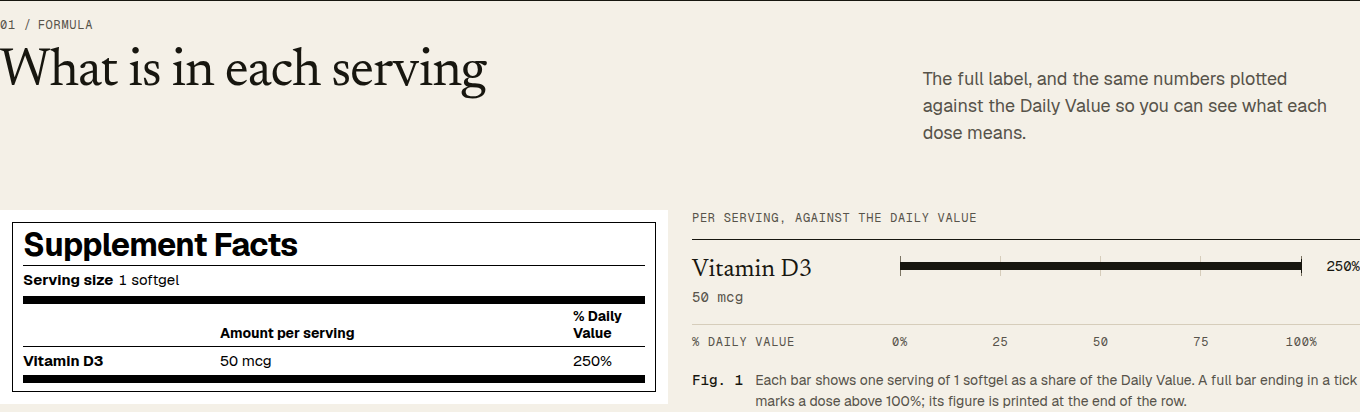
Beside the label, the % Daily Value plot charts the rows that have a Daily Value. When your rows have no allergen line, a Contains line under the label lists the product's Allergen information category field.
What the minimum setup leaves out
Typed rows give the label and its plot. These need a Supplement facts entry from the full setup: Key actives in the buy box, key ingredient rows on product cards and in search, a label for each variant, the label version line and the label PDF. A product that gets an entry later shows the entry; its typed rows are then ignored.
No time to type the rows yet? The block's Label image shows a photo of the printed label while a product has no rows. Like the other settings it belongs to the template, so connect it to a product field of type File (images) to give each product its own photo.
The other chapters, the same way
Each chapter in Product details has settings it uses when the product has no metaobject entry. Each of them takes a dynamic source, so the three moves from the minimum setup work for every chapter:
- Create a product field under Settings > Custom data > Products > Add definition, with the type given below.
- In the theme editor, on Products > Default product, select the chapter's block and click Connect dynamic source beside the setting.
- Fill the field in on each product, in its Metafields section.
You can also type straight into a setting. The setting belongs to the template, so every product on that template then shows the same text: fine for a store with one product, or for text that is the same everywhere.
A chapter opens when it has two or more items: two ingredients, two paragraphs or list items of directions, two steps, two questions. With one item, it shows as a row in the Specifications table. A field connected as plain text counts one item per line.
Ingredients (product)
- Without setup
- The ingredient names from the product's Detailed ingredients category field, which you pick in the product admin. Names alone print as one row of the Specifications table.
- Block and setting
- Ingredients (product), Ingredient notes
- Field to create
- Ingredient notes, type Rich text
- Write it as
- One paragraph for each ingredient: the name, a colon, and why it is in the formula. For example: Magnesium glycinate: gentle on the stomach, and well absorbed.
- Needs an entry
- Form, source and origin lines, and ingredient images: Ingredient entries.
How to take
- Block and setting
- How to take, Directions
- Field to create
- Directions, type Rich text
- Write it as
- Paragraphs or a list. For example: Take 2 capsules a day with water, 30 minutes before bed.
- Safety note
- The block's Safety note shows only on supplement products that use the template: in a box under the directions or, when How to take is one row of the Specifications table, under the table, followed by the caution from a Protocol entry.
- Needs an entry
- The amount as a large number, the dose clock, and supply lines that use the daily amount: a Protocol entry. With directions only, supply lines count one serving a day.
Results timeline
- Block and setting
- Results timeline (inside How to take on the default template), Timeline text
- Field to create
- Timeline text, type Multi-line text
- Write it as
- One step per line: a short label, a vertical bar (
|), then the text. For example:Week 2 | Most people fall asleep more easily.A colon works too when the label is short:Week 2: Most people fall asleep more easily. - With entries
- Timeline step entries give the same steps. Use them when several products share steps.
Lab results (product)
- Block and settings
- Lab results (product), Certificate link, Batch code and Released on
- Fields to create
- Certificate link, type URL; Batch code, type Single line text; Released on, type Single line text, written as 2026-09-14
- Fill it in
- Upload the certificate PDF under Content > Files, copy its link, and paste it into the product's Certificate link. Type the batch code as printed on the package.
- Shows
- One certificate row in the Specifications table, with the batch code, the date and a link to the PDF.
- Needs an entry
- The list of batches, the certificate table with a status for every test, and the batch lookup: Lab batch entries.
FAQ (product)
- Block and setting
- FAQ (product), Questions and answers
- Field to create
- FAQ text, type Rich text
- Write it as
- Each heading, or each paragraph that ends in a question mark, starts a question. The paragraphs under it, up to the next question, are its answer. Use the editor's heading style for a question that doesn't end in a question mark. The theme adds the questions to the page's FAQ structured data.
- With entries
- FAQ entry entries give the same questions. Use them when a question belongs on several products or pages.
The Specifications table
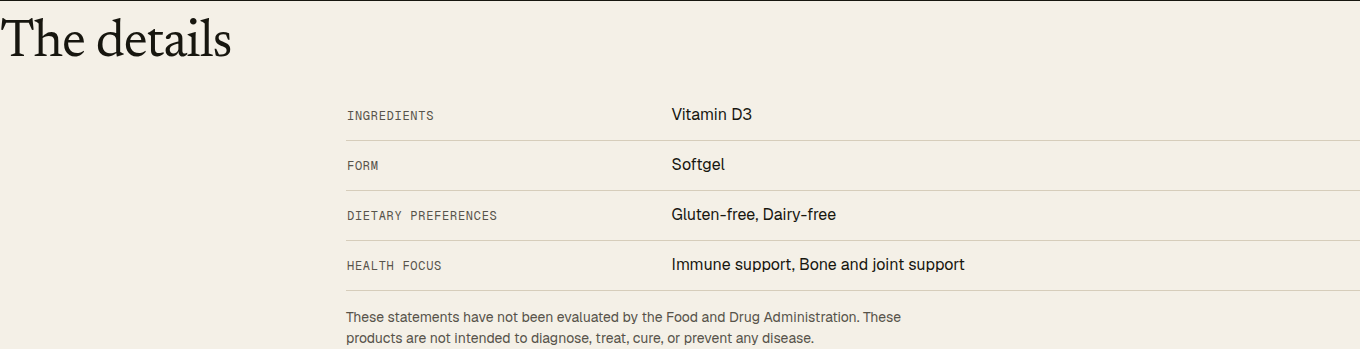
Product details gathers thin data into one Specifications table: a chapter with one item hands it a row, and the product's category fields add theirs (ingredients, form, mineral form, dietary preferences, flavor, age group, health focus, certifications and others). A product with category fields only shows just this table, with your compliance statement as small print under it, so a new supplement product looks complete before you add anything else. When the product also has a Supplement Facts label, the table leaves out the category's Ingredients row, because the label lists them.
When the table is all the section shows, it opens the section under the label Specifications and the heading "The details", numbered like the other chapters when Section numbering is on. Among full chapters it keeps a plain Specifications heading. When How to take is one of its rows, the block's safety note prints under the table, before the compliance statement.
Products without custom data
When no product data block has content, Show category, type and vendor adds a Specifications table from those standard fields. It defaults to on. The table needs at least two filled rows; vendor counts only when it differs from your store name. A hoodie with only Type has no table.
Include product options defaults to off because the variant picker already lists Size, Color and Fabric. Turn it on to include those rows. Neither setting changes rows handed over by data blocks or category attributes. When Specifications is the only chapter, its heading has no number.

Full setup with metaobjects
Metaobjects are structured entries, such as one Supplement Facts label with its rows, that you create once and attach to products. They give what text fields can't: key actives in the buy box and on product cards, a label for each variant, the dose clock, supply lines from the daily amount, the list of lab batches with the batch lookup, and questions shared across products. A product with an entry shows the entry; a product without one keeps the fields from the minimum setup, so you can move over product by product.
The full setup has four steps, in this order. Each is optional, and every block hides on the storefront while its data is missing.
- Set the product category and fill its attributes. Shopify's own fields. No setup: pick values on each product. They fill goal, form, diet, allergen and certification labels across the store.
- Add product disclosures where your products need a legal notice, such as a California Proposition 65 warning. Shopify's own field. The theme shows them on the product page and in the cart, for the buyer's country or region.
- Add subscriptions with a subscription app, if you sell them. The theme shows the plans the app creates.
- Create the theme's definitions for what Shopify has no field for: Supplement Facts, ingredients, directions, timelines, lab batches and product questions. You create each definition once, then fill it in per product. On a development store, an optional shortcut creates all of them in one paste.
Supplement products and other products
Touchmark treats a product as a supplement product when it has a Supplement facts entry, or its category is Vitamins & Supplements or one of its subcategories. Two things follow from that:
- The store statement from Theme settings > Compliance shows on supplement products, through the Compliance disclaimer block. On other products, such as a pill organizer or a shirt, it shows only when a claim on the page carries an asterisk.
- In the theme editor, the Product data notice lists each chapter's next step on supplement products. On other products it says in one sentence that the product data blocks stay hidden until the product has their data, so a store that also sells accessories doesn't see setup steps on them.
Every chapter still shows on any product that has its data. Typed rows alone don't make a product a supplement product: set its category too, as in the minimum setup.
Step 1. Product category and its attributes
Shopify's standard product taxonomy gives every category its own attributes, called category metafields. For supplements the category is Health & Beauty > Health Care > Fitness & Nutrition > Vitamins & Supplements, or one of its subcategories such as Minerals, Single Vitamins, Sleep Supplements or Protein Supplements. Shopify creates these fields for you; there is nothing to define.
- In your Shopify admin, go to Products and open a product.
- Under Category, choose Vitamins & Supplements or the subcategory that fits. Shopify often suggests one from the title.
- In the Category metafields section that appears, pick values for the attributes below. Leave any you don't need empty.
- Click Save. Repeat for each product, or use bulk editing for several at once.
| Attribute | What Touchmark does with it |
|---|---|
| Supplement health focus | The goal label on product cards and in the Formula details line above the product title, when the product has no Goal metafield. On the product page the theme first looks for a goal collection (Theme settings > Goals) that holds the product, then uses the first health focus value. Without a goal collection the label has no link and uses the text color. |
| Dietary preferences | The diet labels in Formula details, the Dietary row of Ingredients (product), and on product cards the line under the name (form, then diet) when the product has no key actives. In Formula details it replaces the theme's Dietary metafield; the Dietary row shows both. |
| Product certifications & standards | The last labels in Formula details, after the diet labels, when its Show certifications is on. They show as text, and GMP is spelled out as GMP-certified facility. No logos are shown. |
| Allergen information | A Contains: line under the Supplement Facts panel and in the Free from row, when the product's Supplement facts entry has no Allergen statement of its own. |
| Food supplement form (or Medicine/Supplement form) | The form, such as Capsules or Powder, in Formula details and in the line under the name on product cards. |
| Flavor | When you link a product's Flavor option to this attribute (in the product's variant options), each option value takes the attribute's value name. The variant picker shows swatches only when every value of an option has a color or image swatch in Shopify admin; flavor values have none, so they show as chips, option cards or a dropdown, by the variant picker's rules. |
| Detailed ingredients | The ingredient names in Ingredients (product), when the product has no Ingredient entries and no Ingredient notes. In Product details the names are one row of the Specifications table; elsewhere they are plain rows under the block's Heading without doses. It is not a substitute for Supplement Facts rows. |
Filters. Category attributes can be collection and search filters. Add them in the Shopify Search & Discovery app under Filters; the theme's product grid shows every filter you add there.
Step 2. Product disclosures
Product disclosures are Shopify's structured legal notices, such as a California Proposition 65 warning or a choking hazard warning, kept word for word. Shopify stores them in the product's Disclosures metafield (shopify.disclosure). Each disclosure has a title, its text, an optional symbol, the countries or regions it applies to, and where it shows: product page, cart or checkout.
- In your Shopify admin, open the product in Products.
- In its Metafields section, click Disclosures. If the field isn't there, add Shopify's standard Disclosures definition under Settings > Custom data > Products first.
- Choose a disclosure Shopify provides, which comes with its title, text, symbol and jurisdictions, or create a custom one and set where it applies and where it shows.
- Click Save.
You decide when a disclosure is required and what it says. Shopify keeps the text word for word.
Where Touchmark shows them
- Product page: the Compliance disclaimer block, under the Supplement Facts chapter, prints each disclosure whose display includes the product page: its symbol, title and text.
- Cart drawer and cart page: a line whose product has a disclosure for the cart shows a button with the disclosure's title. It opens the full text.
- Checkout: outside the theme. Shopify documents checkout display as a checkout extension on Shopify Plus.
The buyer's country or region. The theme passes the product's disclosures through Shopify's applicable_disclosures filter, which keeps the ones that apply to the buyer's jurisdiction. A disclosure limited to California shows to buyers in California. When Shopify can't tell where the buyer is, the disclosure shows.
With the store statement. Theme settings > Compliance holds your structure/function statement, which claims marked with an asterisk point to. On a supplement product it shows after the disclosures, unless one of the disclosures is that statement (its text mentions the Food and Drug Administration, or starts with the statement's first sentence). A Prop 65 warning does not replace the statement. On other products it shows only when a claim carries an asterisk: an ingredient's reason, a timeline step or an FAQ answer that ends in *.
Step 3. Subscriptions
Subscription plans, which Shopify calls selling plans, come from a subscription app such as Shopify Subscriptions. The app creates the plans and attaches them to products; Touchmark shows them. The theme creates no plans and charges nothing.
| Where | Product with plans | Without plans |
|---|---|---|
| Purchase options block | One-time purchase first, then each plan group from the app with its price per delivery and saving; the delivery cadence inside the selected option; the Subscription badge and Perks from Theme settings > Subscriptions; the subscription policy link. | Not shown. |
| Price block | The subscription price and its cadence while a plan is selected. | The one-time price. |
| Product cards | The one-time price, then a second line with the lowest subscription price, when Theme settings > Product cards > Show subscription price is on. With it off, a Subscribe and save badge. A product sold by subscription only leads with its plan price. | The one-time price. |
| Quick add, quiz, routine builder | The same choice between one-time and subscription. | One-time only. |
| Cart | A subscription line shows a Subscription badge and its plan, with a choice of the group's other plans and a switch to one-time (unless the product is subscription only). A one-time line can offer the subscription, when Theme settings > Cart > Offer a subscription on one-time lines is on. With Theme settings > Cart > Subscriptions ship free on, free shipping progress counts subscription lines as shipping free and asks only for one-time items. | No plan text and no switch. |
| Subscription steps section | The steps, the savings calculator with the price per day and, with Show delivery slip on, the delivery slip, for the product you choose or the first product with plans. | Not shown on the storefront. In the theme editor it shows its layout faded, with a notice, until a product has a plan. |
A product that is sold by subscription only (in the app, without one-time purchase) opens with its first plan selected and shows no one-time option.
How long a delivery lasts. When a variant has the Servings metafield, purchase options say how long the chosen quantity lasts at the daily amount in the product's Protocol entry (one serving a day without it), with the serving size from its Supplement facts entry: "30 servings last 30 days at 1 serving (2 capsules) a day." When a delivery runs out more than 7 days before the next one, or lasts more than 7 days longer, the line says so and offers the quantity that fits, with a button that sets it, or a plan whose interval matches. The cart, quick add and the routine builder use the same sentence.
Managing a subscription. Put your app's customer portal address in Theme settings > Subscriptions > Subscription management link. Without it, the theme tells customers to manage subscriptions from the links in their subscription emails.
Step 4. The theme's definitions
Shopify has no standard fields for a Supplement Facts label, lab results, directions, a results timeline or product questions, so Touchmark reads its own. They are metaobjects (structured entries, such as one Supplement Facts label) and metafields (fields on a product, variant, collection, page or blog post that point to those entries or hold a value). Create each definition once. Names can be anything you like; the type, keys and namespace and key must match this page exactly, because that is what the theme reads.
The tables below are the manual path. On a development store, the optional shortcut creates every definition in them in one paste.
| Definition | Kind | Read by |
|---|---|---|
| Supplement facts | Metaobject supplement_facts, metafield custom.supplement_facts on products and variants | Supplement Facts, Key actives, Variant picker, product cards, search |
| Supplement fact row | Metaobject supplement_fact_row | The rows of a Supplement facts entry |
| Ingredient | Metaobject ingredient, metafield custom.ingredients | Ingredients (product), Ingredient trace |
| Protocol | Metaobject protocol, metafield custom.protocol | How to take, supply lines, quiz |
| Timeline step | Metaobject timeline_step, metafield custom.timeline | Results timeline (the block and the section) |
| Lab batch | Metaobject lab_batch, metafield custom.lab_batches | Lab results (product), the Lab results section, Rating and batch, Trust badges, Image banner, search and the batch lookup |
| Lab result | Metaobject lab_result | The result rows of a Lab batch entry |
| FAQ entry | Metaobject faq_entry, metafield custom.faq on products and pages | FAQ (product), FAQ section |
| Author | Metaobject author, metafields custom.author and custom.reviewed_by on blog posts | Blog post byline and author bio |
| Other product fields | Formula number, Goal, Goals, Servings, Dietary, Restock note, Bundle products | Cards, product page, cart, filters |
| Collection fields | Accent color, Key ingredients | Goal list, goal navigation, menus, search |
| Standard fields | Product subtitle, Product rating, Product rating count | Titles, cards, ratings |
How to create a metaobject definition
- In your Shopify admin, go to Settings > Custom data (called Metafields and metaobjects in newer admins), then Metaobjects, and click Add definition.
- Enter the Name from this page. Shopify fills in the type from the name; check that it matches the type given here, for example
supplement_facts, and edit it before saving if not. - Click Add field for each row of the definition's field table: enter the field name, choose the type, and turn on List of values where the type starts with "List of". Add the validations given in the Notes column.
- Make each field's key match the Key column. Shopify fills the key in from the field name, so names such as Form or source (key
form) need their key edited. If you can't edit a key, name the field after its key first, save, then rename it: the key stays. - Under Access, keep Storefronts turned on so the theme can read the entries.
- Click Save.
Create the definitions that others point to first: Supplement fact row before Supplement facts, and Lab result before Lab batch. A field of type Metaobject can only point to a definition that already exists.
How to create a metafield definition
- Go to Settings > Custom data and choose what the field belongs to: Products, Variants, Collections, Pages or Blog posts. Click Add definition.
- Enter a Name, then set Namespace and key to exactly the value on this page, for example
custom.supplement_facts. - Click Select type and choose the type given here. For a Metaobject type, choose the metaobject definition it points to. For a list, click One value and change it to List of values.
- Click Save. The field now shows in the Metafields section of every product (or variant, collection, page or blog post).
How to fill them in
- Go to Content > Metaobjects, open a definition, click Add entry, fill in the fields and click Save. A Supplement facts entry needs its rows: create them from the Rows field, or first under Supplement fact row.
- Open the product in Products. In its Metafields section, click the field, choose the entry or entries, and save. For a list, drag the entries into the order you want.
- Open the product in the theme editor. A chapter that was waiting for the data now shows it, and the Product data notice marks it Shown.
Supplement facts metaobject
Type supplement_facts · metafield custom.supplement_facts
One Supplement Facts label. Point a product to it, and point a variant to its own entry when that variant's label differs (another size or flavor).
- Metafield
- Name Supplement facts, namespace and key
custom.supplement_facts, type Metaobject (Supplement facts), one value. Create it under Products, and also under Variants if any variant has its own label. - Read by
- The Supplement Facts block (the label table, the % Daily Value plot, the label version line and the Label PDF link); Key actives; the Variant picker (serving size beside the first option); product cards (key ingredient rows, set in Theme settings > Product cards > Key ingredient rows); search suggestions; quiz results; the Free from row of Ingredients (product) (its allergen statement); and Compliance disclaimer: a product with an entry is a supplement product, so it carries the store statement.
- Variants
- When the selected variant has its own entry, the label, key actives and serving size follow it as shoppers change options. Otherwise the product's entry shows.
- When it is empty
- On supplement products, the Supplement Facts chapter shows the block's Label rows, typed or connected to a product field, else its Label image, else nothing. On other products it ignores these settings and shows nothing. Key actives shows nothing. Product cards show the form and diet from the product category instead of key ingredient rows.
| Field name | Key | Type | Notes |
|---|---|---|---|
| Serving size | serving_size | Single line text | As printed on the label, for example 2 capsules or 1 scoop (10 g). |
| Servings per container | servings_per_container | Single line text | As printed, for example 30. |
| Rows | rows | List of metaobject (Supplement fact row) | The label's rows, in label order. The label shows nothing without rows. |
| Other ingredients | other_ingredients | Multi-line text | Printed under the label. |
| Allergen statement | allergens | Single line text | Printed under the label. When empty, the product's Allergen information attribute shows as Contains:. |
| Label version | label_version | Single line text | For example v3.1. Shown in the label version line. |
| Label updated | label_updated | Date | Shown in the label version line. |
| Label PDF | label_pdf | File (for a PDF) | A link to the printed label. |
| Footnote | footnote | Multi-line text | Extra notes under the label. The theme writes the two standard notes itself from the rows: * Percent Daily Values are based on a 2,000 calorie diet, and † Daily Value not established. |
Supplement fact row metaobject
Type supplement_fact_row
One row of a Supplement Facts label. Rows have no metafield of their own: they are listed in the Rows field of a Supplement facts entry. Use Nutrient as the definition's display name so entries are easy to find.
- How rows print
- A row with a % Daily Value prints it (values under 1 print as <1%). A blank % Daily Value prints a dagger (†, Daily Value not established), unless its Daily Value mark is
none, which leaves the cell empty, as for Calories. The markasteriskadds the 2,000 calorie marker. Indented rows sit under the row above, and a thick rule separates rows with a Daily Value from rows without one. - Key actives
- Rows with Key active on feed the Key actives block, product cards and search. The block shows them only when two or more are marked, with the ingredient the product title names first. The % Daily Value plot shows the key actives, or every top-level row with a Daily Value when none is marked.
| Field name | Key | Type | Notes |
|---|---|---|---|
| Nutrient | nutrient | Single line text | Required. For example Magnesium. |
| Form or source | form | Single line text | Printed in parentheses after the nutrient, for example: as magnesium bisglycinate chelate. |
| Amount | amount | Single line text | Required. As printed, for example 200 or 2,500. |
| Unit | unit | Single line text | For example mg, mcg or g. |
| % Daily Value | daily_value | Decimal | Minimum value 0. Leave blank when no Daily Value is established. |
| Daily Value mark | daily_value_mark | Single line text | Limit to preset choices: dagger, asterisk, none. Leave blank for the usual dagger on a blank Daily Value. asterisk: * (based on a 2,000 calorie diet). none: no mark and no Daily Value cell (Calories). |
| Indent | indent | True or false | Nested under the row above, as Dietary Fiber under Total Carbohydrate. |
| Key active | key_active | True or false | Shows the row among the product's key actives. |
| Note | note | Single line text | A short line under the row in the % Daily Value plot. A note that ends in * links to the compliance statement. |
| Above the adult upper limit | above_upper_limit | True or false | The amount is above the tolerable upper intake level for adults. The plot marks the row and explains it. |
Ingredient metaobject
Type ingredient · metafield custom.ingredients
Why an ingredient is in a formula, in what form and at what dose. Make one entry per product and ingredient, because the dose and the reason differ between formulas.
- Metafield
- Name Ingredients, namespace and key
custom.ingredients, type Metaobject (Ingredient), list of values, under Products. - Read by
- Ingredients (product) (one row per ingredient, with the image and the reason for the dose) and the Ingredient trace section (one card per ingredient). When the ingredient's image is also in the product's gallery, the rationale row points to that figure instead of repeating the photo.
- When it is empty
- Ingredients (product) shows its Ingredient notes, else the names from the product's Detailed ingredients attribute, then any Ingredient row blocks; with none of these, it shows nothing. Ingredient trace uses its Ingredient card blocks; with none, it shows nothing on the storefront and its layout with a notice in the editor.
| Field name | Key | Type | Notes |
|---|---|---|---|
| Name | name | Single line text | For example Magnesium. An entry without a name is skipped. |
| Form | form | Single line text | For example Bisglycinate chelate. |
| Source | source | Single line text | For example the botanical name. |
| Origin | origin | Single line text | Where it comes from. |
| Dose | dose | Single line text | For example 200 mg. |
| Why this form and dose | why | Multi-line text | The reason, in a sentence or two. |
| Image | image | File (images only) | Set the image's alt text on the file in Content > Files; the theme uses it as the caption. |
Protocol metaobject
Type protocol · metafield custom.protocol
How to take a formula.
- Metafield
- Name Protocol, namespace and key
custom.protocol, type Metaobject (Protocol), one value, under Products. - Read by
- How to take: the amount as a large number, when (with a 24-hour dose clock from Dose times), take with, pairs with, numbered steps and the caution in the safety note. The Amount also sets the daily servings for supply lines in purchase options, the routine builder and the Subscription steps calculator, when it is a plain number ("2") or a number of servings ("2 servings"); an amount such as "2 capsules" counts as one serving. The quiz shows When and Amount with each suggestion.
- When it is empty
- On supplement products, How to take shows its Directions, typed or connected to a product field. On other products it uses only the product's Protocol metafield and never shows the Safety note or caution. Without them it shows nothing, including a Results timeline block inside it. Supply lines count one serving a day.
| Field name | Key | Type | Notes |
|---|---|---|---|
| When | when | Single line text | For example 30 minutes before bed. |
| Amount | amount | Single line text | For example 2 capsules, or 2. |
| Take with | take_with | Single line text | For example Water, with or without food. |
| Pairs with | pairs_with | Single line text | Another product or habit. |
| Dose times | dose_times | List of single line text | 24-hour times for the dose clock, for example 21:00. Validation: regular expression ^([01][0-9]|2[0-3]):[0-5][0-9]$. |
| Steps | steps | List of single line text | Optional numbered steps. |
| Caution | caution | Multi-line text | Added to the safety note when the block's Show product caution is on. |
Timeline step metaobject
Type timeline_step · metafield custom.timeline
One step of what to expect over time, such as Week 1 or Day 90.
- Metafield
- Name Timeline, namespace and key
custom.timeline, type Metaobject (Timeline step), list of values, under Products. Put the steps in time order. - Read by
- The Results timeline block (on its own or inside How to take) and the Results timeline section. Text that ends in an asterisk links to the compliance statement.
- When it is empty
- The Results timeline block shows its Timeline text and its Step blocks, and the Results timeline section its Timeline step blocks. With none of these, they show nothing.
| Field name | Key | Type | Notes |
|---|---|---|---|
| Label | label | Single line text | For example Week 2-4. |
| Text | text | Multi-line text | What a customer may notice. The Results timeline block's Footnote setting says that individual results vary. |
Lab batch metaobject
Type lab_batch · metafield custom.lab_batches
One tested production batch and its certificate of analysis. The smallest useful entry is the batch code, product, test date, status and the certificate PDF, plus up to three headline results. Result rows are optional.
- Metafield
- Name Lab batches, namespace and key
custom.lab_batches, type Metaobject (Lab batch), list of values, under Products. Order the list newest first: the theme treats the first entry as the current batch. - Handle
- Use the batch code as the entry's handle (for example
mg-24118for MG-24118). Shopify creates the handle from the display name, so set Batch code as the definition's display name, and check the handle when you save an entry; edit it with the pencil icon next to Handle if needed. The batch lookup finds a batch by its handle first, so codes typed as "mg 24118" or "MG24118" still match. It also compares codes across the first 250 entries. - Product field
- Set the batch's own Product field too. Search results and the lookup outside a product page use it to open the certificate on that product's page; without it they link to the certificate PDF.
- Read by
- Lab results (product) on the product page (the batches, newest first, the certificate of the chosen batch and the lookup); the Lab results section (batches from Lab batch blocks, from the products you choose, or the store's newest entries by test date); Rating and batch (the current batch and status under the title); Trust item blocks in Trust badges whose Details is Newest lab batch; the Image banner's lab result tag and its Detail blocks; the search page and the search dialog, which show a batch card for a batch code.
- Certificate
- With result rows, the certificate is a table with a written status for every test, and the stamp reads "All tests pass" only when every result's status is Pass. Without result rows, it lists the headline results and makes the PDF its main link.
- When it is empty
- Lab results (product) gives one row in the Specifications table from its Certificate link, Batch code and Released on, when they are set; otherwise it shows nothing. The rating line's batch and the Newest lab batch trust row show nothing. The Lab results section shows nothing on the storefront until the store has a Lab batch entry; in the editor it shows its layout with dashes and a notice.
| Field name | Key | Type | Notes |
|---|---|---|---|
| Batch code | batch_code | Single line text | Required. As printed on the package, for example MG-24118. Use it as the display name. |
| Product | product | Product | The product this batch is of. |
| Laboratory | lab | Single line text | The lab that ran the tests. |
| Tested on | tested_on | Date | Also decides which batches are newest in the Lab results section. |
| Best before | best_before | Date | |
| Status | status | Single line text | Limit to preset choices: Released, Passed. Always written out on the certificate. |
| Certificate (PDF) | certificate | File (for a PDF) | The certificate of analysis. |
| Method | method | Multi-line text | How the batch was tested. |
| Headline results | headline_results | List of single line text | Maximum list size 3. Optional. Results as printed on the certificate, each written "Test: result", for example Heavy metals: Pass. Enough on its own when the full results are only in the PDF. |
| Results | results | List of metaobject (Lab result) | Optional. In certificate order. Results with the same group print under one heading. |
Lab result metaobject
Type lab_result
One test result on a certificate. Results have no metafield of their own: they are listed in the Results field of a Lab batch entry. Use Test as the display name.
| Field name | Key | Type | Notes |
|---|---|---|---|
| Group | group | Single line text | The certificate's section, for example Potency, per 2 capsules. |
| Test | test | Single line text | For example Lead. |
| Specification | specification | Single line text | The limit or target, for example < 0.5 mcg. |
| Result | result | Single line text | The measured value. |
| Status | status | Single line text | Limit to preset choices: Pass, Fail. |
FAQ entry metaobject
Type faq_entry · metafield custom.faq
One question and its answer. An entry can be listed on several products and pages.
- Metafield
- Name FAQ, namespace and key
custom.faq, type Metaobject (FAQ entry), list of values. Create it under Products, and under Pages for a page of questions. - Read by
- The FAQ (product) block on the product page (questions from the metafield first, then its Question and answer blocks), and the FAQ section when its Source is Page metafield (the page it is on) or Product metafield (the product you choose, or the page's product). Both can add FAQ structured data. Answers that end in an asterisk link to the compliance statement.
- When it is empty
- FAQ (product) shows its Questions and answers and its Question and answer blocks, and the FAQ section its FAQ question blocks. With none of these, they show nothing.
| Field name | Key | Type | Notes |
|---|---|---|---|
| Question | question | Single line text | Use it as the display name. An entry without a question is skipped. |
| Answer | answer | Rich text |
Author metaobject
Type author · metafields custom.author, custom.reviewed_by
A person credited on blog posts: the writer, or the expert who reviewed the post.
- Metafields
- Under Blog posts: name Author, namespace and key
custom.author, and name Reviewed by, namespace and keycustom.reviewed_by. Both type Metaobject (Author), one value. - Read by
- The Article section's byline and author bio, and article cards in Blog posts and Blog.
- When it is empty
- The byline uses the post's author from Shopify admin. The reviewer line uses the Article section's Reviewer name and Reviewer credentials, or is left out.
| Field name | Key | Type | Notes |
|---|---|---|---|
| Name | name | Single line text | Required. Use it as the display name. |
| Credentials | credentials | Single line text | For example MS, RDN. |
| Role | role | Single line text | |
| Bio | bio | Multi-line text | |
| Portrait | image | File (images only) |
Other product and variant fields
Single fields on the product or variant. Create each under Products (or Variants) with the namespace and key shown.
| Name and key | Type | What it does |
|---|---|---|
Formula numbercustom.formula_number | Single line text, on products | A short number such as 04, shown with the goal on product cards (Theme settings > Product cards > Show formula number and goal), in Formula details, the cart, quick add, search suggestions, the goal navigation above the product grid, Complementary products, bundle contents and the routine builder. Leave it empty to show no number. |
Goalcustom.goal | Collection, on products | The product's main goal collection. Its title is the goal label on cards, in Formula details and in breadcrumbs, and its Accent color colors the marker. Without it, the label comes from a goal collection that holds the product (product page only) or the Supplement health focus attribute. |
Goalscustom.goals | List of single line text, on products | Optional, for a Goal filter. Shopify can't filter on a collection field, so list the product's goal collection titles here and add the field as a filter in Search & Discovery. When a shopper filters by a goal, the goal navigation row above the product grid marks that goal. |
Servingscustom.servings | Integer, on variants and products | The number of servings in the variant. The price per serving, how long a delivery lasts and the Subscription steps calculator use it. The variant's value comes first, then the product's. Without it, no price per serving or supply line shows. |
Dietarycustom.dietary | List of single line text, on products | Diet labels such as Vegan, used when the product has no Dietary preferences attribute (Formula details), and added to the Free from row. Prefer the attribute from step 1. |
Restock notecustom.restock_note | Single line text, on variants and products | Shown when the variant is sold out, for example Back in stock on December 3: in Inventory status, on product cards and in quick add. The variant's note comes first. |
Bundle productscustom.bundle_products | List of products, on products | The products in a bundle, listed by a Collapsible row block whose Content is Bundle contents, each with its formula number and subtitle. |
Collection fields
Create these under Collections. They matter most for the collections you list in Theme settings > Goals.
| Name and key | Type | What it does |
|---|---|---|
Accent colorcustom.accent_color | Color | The color of the collection's goal marker: in the goal list (Shop by goal, search, the 404 page, empty states), the goal navigation above the product grid, collection lists, the mobile menu, search suggestions, the routine builder, and the goal marker of products whose Goal is this collection. A Goal block's own Accent color replaces it. Without either, the marker uses the text color. |
Key ingredientscustom.key_actives | Single line text | A short line such as Magnesium, L-theanine, glycine under the goal's name in Shop by goal. A Goal block's own Key ingredients setting replaces it. |
Blog post fields
| Name and key | Type | What it does |
|---|---|---|
Author, Reviewed bycustom.author, custom.reviewed_by | Metaobject (Author) | See Author. |
Related productscustom.related_products | List of products | The products mentioned in the post, shown by the Article section when its own Products setting is empty. |
Shopify's standard fields
| Name and key | Where it comes from | What it does |
|---|---|---|
Product subtitledescriptors.subtitle | A Shopify standard definition. Add it under Settings > Custom data > Products > Add definition, and pick Product subtitle from the suggestions. | A short line under the product title (Title block, Show subtitle), and on product cards, quiz results, the routine builder, bundle contents and Complementary products. |
Product rating, Product rating countreviews.rating, reviews.rating_count | Filled in by most review apps. | Stars and the review count on product cards (Show rating), under the product title (Rating and batch), in quick add, the Image banner's Rating block and the Testimonials rating summary. Nothing shows for a product without ratings. The reviews themselves come from the app's block, placed in the Reviews chapter. |
Optional shortcut: one paste on a development store
Optional, and for development stores. Nothing on this page needs it. Step 4 of the full setup means 9 metaobject definitions and 22 metafield definitions, each with an exact type and key; by hand that takes about an hour. On a development store you can instead paste one document into Shopify's GraphiQL app and run it once. It creates every definition exactly as the tables in step 4 describe, with storefront access on, and turns on Shopify's standard Product subtitle field. It creates no entries and changes no products. Steps 1 to 3 happen on each product or in your subscription app, so they don't change.
1. Install Shopify's GraphiQL app
GraphiQL is Shopify's own tool for running Admin API queries and mutations on your store. You install it from its own page:
- Open shopify-graphiql-app.shopifycloud.com, the link in Shopify's guide.
- Under Shop URL, enter your store's domain, for example
your-store.myshopify.com. - Under Admin API, turn on these three access scopes and leave the rest as they are:
write_metaobject_definitions, to create the metaobject definitionswrite_products, for the product, variant and collection fieldswrite_online_store_pages, for the page and blog post fields
- Click Install. Shopify shows the access the app asks for in your admin. Approve it, and GraphiQL opens.
2. Paste the document and run it
- Copy the document with the button below, or download it and open it in a text editor.
- In GraphiQL, select everything in the query editor, delete it, and paste the document.
- Click GraphiQL's run button (the triangle) once.
- Read the result beside the editor. It has one entry for each definition, under the name the document gives it, such as
supplementFactsorproductLabBatches.
Show the document (290 lines)
# Touchmark: one-step data setup. Definitions version 1.
# Creates the 9 metaobject definitions and 22 metafield definitions Touchmark reads, and turns on
# Shopify's standard Product subtitle field. Creates no entries and changes no products.
# Run it in Shopify's GraphiQL app with the access scopes write_metaobject_definitions, write_products and
# write_online_store_pages. Safe to run again: a definition that already exists returns an error and is
# left as it is. Instructions: https://touchmark.zopy.xyz/data#one-step-setup

mutation TouchmarkDataSetup {
  # 1. Metaobject definitions. Rows and results come before the entries that list them.
  supplementFactRow: metaobjectDefinitionCreate(definition: {
    type: "supplement_fact_row"
    name: "Supplement fact row"
    description: "One row of a Supplement Facts label."
    displayNameKey: "nutrient"
    access: { storefront: PUBLIC_READ }
    capabilities: { translatable: { enabled: true } }
    fieldDefinitions: [
      { key: "nutrient", name: "Nutrient", type: "single_line_text_field", required: true }
      { key: "form", name: "Form or source", type: "single_line_text_field", description: "Printed in parentheses after the nutrient, for example: as magnesium bisglycinate chelate." }
      { key: "amount", name: "Amount", type: "single_line_text_field", required: true, description: "As printed, for example 200 or 2,500." }
      { key: "unit", name: "Unit", type: "single_line_text_field", description: "For example mg, mcg or g." }
      { key: "daily_value", name: "% Daily Value", type: "number_decimal", validations: [{ name: "min", value: "0" }], description: "Blank means no Daily Value established." }
      { key: "daily_value_mark", name: "Daily Value mark", type: "single_line_text_field", validations: [{ name: "choices", value: "[\"dagger\", \"asterisk\", \"none\"]" }], description: "Blank or dagger: † (no Daily Value established). asterisk: * (2,000 calorie diet). none: no mark and no Daily Value cell, as for Calories." }
      { key: "indent", name: "Indent", type: "boolean", description: "Nested under the row above (Dietary Fiber under Total Carbohydrate)." }
      { key: "key_active", name: "Key active", type: "boolean", description: "Shown among the product's key actives." }
      { key: "note", name: "Note", type: "single_line_text_field", description: "A short line under the row in the % Daily Value plot. End it with * to link to the compliance statement." }
      { key: "above_upper_limit", name: "Above the adult upper limit", type: "boolean", description: "The amount is above the tolerable upper intake level for adults." }
    ]
  }) { metaobjectDefinition { type } userErrors { field message code } }

  supplementFacts: metaobjectDefinitionCreate(definition: {
    type: "supplement_facts"
    name: "Supplement facts"
    description: "One Supplement Facts label, for a product or for a variant whose label differs."
    access: { storefront: PUBLIC_READ }
    capabilities: { translatable: { enabled: true } }
    fieldDefinitions: [
      { key: "serving_size", name: "Serving size", type: "single_line_text_field", description: "As printed on the label, for example 2 capsules or 1 scoop (10 g)." }
      { key: "servings_per_container", name: "Servings per container", type: "single_line_text_field", description: "As printed, for example 30." }
      { key: "rows", name: "Rows", type: "list.metaobject_reference", validations: [{ name: "metaobject_definition_type", value: "supplement_fact_row" }], description: "The label's rows, in label order." }
      { key: "other_ingredients", name: "Other ingredients", type: "multi_line_text_field" }
      { key: "allergens", name: "Allergen statement", type: "single_line_text_field" }
      { key: "label_version", name: "Label version", type: "single_line_text_field" }
      { key: "label_updated", name: "Label updated", type: "date" }
      { key: "label_pdf", name: "Label PDF", type: "file_reference", description: "A PDF of the printed label." }
      { key: "footnote", name: "Footnote", type: "multi_line_text_field", description: "Extra notes under the label. The theme writes the two standard Daily Value notes itself." }
    ]
  }) { metaobjectDefinition { type } userErrors { field message code } }

  ingredient: metaobjectDefinitionCreate(definition: {
    type: "ingredient"
    name: "Ingredient"
    description: "Why an ingredient is in a formula. One entry per product and ingredient."
    displayNameKey: "name"
    access: { storefront: PUBLIC_READ }
    capabilities: { translatable: { enabled: true } }
    fieldDefinitions: [
      { key: "name", name: "Name", type: "single_line_text_field" }
      { key: "form", name: "Form", type: "single_line_text_field" }
      { key: "source", name: "Source", type: "single_line_text_field" }
      { key: "origin", name: "Origin", type: "single_line_text_field" }
      { key: "dose", name: "Dose", type: "single_line_text_field" }
      { key: "why", name: "Why this form and dose", type: "multi_line_text_field" }
      { key: "image", name: "Image", type: "file_reference", validations: [{ name: "file_type_options", value: "[\"Image\"]" }], description: "Set the alt text on the file in Content > Files; the theme uses it as the caption." }
    ]
  }) { metaobjectDefinition { type } userErrors { field message code } }

  protocol: metaobjectDefinitionCreate(definition: {
    type: "protocol"
    name: "Protocol"
    description: "How to take a formula."
    access: { storefront: PUBLIC_READ }
    capabilities: { translatable: { enabled: true } }
    fieldDefinitions: [
      { key: "when", name: "When", type: "single_line_text_field" }
      { key: "amount", name: "Amount", type: "single_line_text_field" }
      { key: "take_with", name: "Take with", type: "single_line_text_field" }
      { key: "pairs_with", name: "Pairs with", type: "single_line_text_field" }
      { key: "dose_times", name: "Dose times", type: "list.single_line_text_field", validations: [{ name: "regex", value: "^([01][0-9]|2[0-3]):[0-5][0-9]$" }], description: "24-hour times for the dose clock, for example 21:00." }
      { key: "steps", name: "Steps", type: "list.single_line_text_field" }
      { key: "caution", name: "Caution", type: "multi_line_text_field" }
    ]
  }) { metaobjectDefinition { type } userErrors { field message code } }

  timelineStep: metaobjectDefinitionCreate(definition: {
    type: "timeline_step"
    name: "Timeline step"
    description: "One step of what to expect over time."
    displayNameKey: "label"
    access: { storefront: PUBLIC_READ }
    capabilities: { translatable: { enabled: true } }
    fieldDefinitions: [
      { key: "label", name: "Label", type: "single_line_text_field", description: "For example Week 2-4." }
      { key: "text", name: "Text", type: "multi_line_text_field" }
    ]
  }) { metaobjectDefinition { type } userErrors { field message code } }

  labResult: metaobjectDefinitionCreate(definition: {
    type: "lab_result"
    name: "Lab result"
    description: "One test result on a certificate of analysis."
    displayNameKey: "test"
    access: { storefront: PUBLIC_READ }
    capabilities: { translatable: { enabled: true } }
    fieldDefinitions: [
      { key: "group", name: "Group", type: "single_line_text_field", description: "The certificate's section, for example Potency, per 2 capsules." }
      { key: "test", name: "Test", type: "single_line_text_field" }
      { key: "specification", name: "Specification", type: "single_line_text_field" }
      { key: "result", name: "Result", type: "single_line_text_field" }
      { key: "status", name: "Status", type: "single_line_text_field", validations: [{ name: "choices", value: "[\"Pass\", \"Fail\"]" }] }
    ]
  }) { metaobjectDefinition { type } userErrors { field message code } }

  labBatch: metaobjectDefinitionCreate(definition: {
    type: "lab_batch"
    name: "Lab batch"
    description: "One tested batch and its certificate of analysis. Use the batch code as the entry handle."
    displayNameKey: "batch_code"
    access: { storefront: PUBLIC_READ }
    capabilities: { translatable: { enabled: true } }
    fieldDefinitions: [
      { key: "batch_code", name: "Batch code", type: "single_line_text_field", required: true, description: "As printed on the package, for example MG-24118. Also use it as the entry handle." }
      { key: "product", name: "Product", type: "product_reference", description: "The product this batch is of. Search and the batch lookup open the certificate on its page." }
      { key: "lab", name: "Laboratory", type: "single_line_text_field" }
      { key: "tested_on", name: "Tested on", type: "date" }
      { key: "best_before", name: "Best before", type: "date" }
      { key: "status", name: "Status", type: "single_line_text_field", validations: [{ name: "choices", value: "[\"Released\", \"Passed\"]" }] }
      { key: "certificate", name: "Certificate (PDF)", type: "file_reference", description: "The certificate of analysis, as a PDF." }
      { key: "method", name: "Method", type: "multi_line_text_field" }
      { key: "headline_results", name: "Headline results", type: "list.single_line_text_field", validations: [{ name: "list.max", value: "3" }], description: "Optional. Up to three results as printed, each written Test: result, for example Heavy metals: Pass." }
      { key: "results", name: "Results", type: "list.metaobject_reference", validations: [{ name: "metaobject_definition_type", value: "lab_result" }], description: "Optional. In certificate order; results with the same group print under one heading." }
    ]
  }) { metaobjectDefinition { type } userErrors { field message code } }

  faqEntry: metaobjectDefinitionCreate(definition: {
    type: "faq_entry"
    name: "FAQ entry"
    description: "One question and its answer."
    displayNameKey: "question"
    access: { storefront: PUBLIC_READ }
    capabilities: { translatable: { enabled: true } }
    fieldDefinitions: [
      { key: "question", name: "Question", type: "single_line_text_field" }
      { key: "answer", name: "Answer", type: "rich_text_field" }
    ]
  }) { metaobjectDefinition { type } userErrors { field message code } }

  author: metaobjectDefinitionCreate(definition: {
    type: "author"
    name: "Author"
    description: "A person credited on blog posts: the writer, or the expert who reviewed the post."
    displayNameKey: "name"
    access: { storefront: PUBLIC_READ }
    capabilities: { translatable: { enabled: true } }
    fieldDefinitions: [
      { key: "name", name: "Name", type: "single_line_text_field", required: true }
      { key: "credentials", name: "Credentials", type: "single_line_text_field", description: "For example MS, RDN." }
      { key: "role", name: "Role", type: "single_line_text_field" }
      { key: "bio", name: "Bio", type: "multi_line_text_field" }
      { key: "image", name: "Portrait", type: "file_reference", validations: [{ name: "file_type_options", value: "[\"Image\"]" }] }
    ]
  }) { metaobjectDefinition { type } userErrors { field message code } }

  # 2. Metafield definitions, by what they belong to: products, variants, collections, pages, blog posts.
  productSupplementFacts: metafieldDefinitionCreate(definition: {
    ownerType: PRODUCT, namespace: "custom", key: "supplement_facts", name: "Supplement facts", type: "metaobject_reference"
    validations: [{ name: "metaobject_definition_type", value: "supplement_facts" }]
    description: "The product's Supplement Facts label."
    access: { storefront: PUBLIC_READ }, pin: true
  }) { createdDefinition { ownerType namespace key } userErrors { field message code } }
  productIngredients: metafieldDefinitionCreate(definition: {
    ownerType: PRODUCT, namespace: "custom", key: "ingredients", name: "Ingredients", type: "list.metaobject_reference"
    validations: [{ name: "metaobject_definition_type", value: "ingredient" }]
    description: "Why each ingredient is in the formula, one Ingredient entry each, in display order."
    access: { storefront: PUBLIC_READ }, pin: true
  }) { createdDefinition { ownerType namespace key } userErrors { field message code } }
  productProtocol: metafieldDefinitionCreate(definition: {
    ownerType: PRODUCT, namespace: "custom", key: "protocol", name: "Protocol", type: "metaobject_reference"
    validations: [{ name: "metaobject_definition_type", value: "protocol" }]
    description: "How to take the product."
    access: { storefront: PUBLIC_READ }, pin: true
  }) { createdDefinition { ownerType namespace key } userErrors { field message code } }
  productTimeline: metafieldDefinitionCreate(definition: {
    ownerType: PRODUCT, namespace: "custom", key: "timeline", name: "Timeline", type: "list.metaobject_reference"
    validations: [{ name: "metaobject_definition_type", value: "timeline_step" }]
    description: "What to expect over time: Timeline step entries in time order."
    access: { storefront: PUBLIC_READ }, pin: true
  }) { createdDefinition { ownerType namespace key } userErrors { field message code } }
  productLabBatches: metafieldDefinitionCreate(definition: {
    ownerType: PRODUCT, namespace: "custom", key: "lab_batches", name: "Lab batches", type: "list.metaobject_reference"
    validations: [{ name: "metaobject_definition_type", value: "lab_batch" }]
    description: "Tested batches and their certificates. Newest first: the first is the current batch."
    access: { storefront: PUBLIC_READ }, pin: true
  }) { createdDefinition { ownerType namespace key } userErrors { field message code } }
  productFaq: metafieldDefinitionCreate(definition: {
    ownerType: PRODUCT, namespace: "custom", key: "faq", name: "FAQ", type: "list.metaobject_reference"
    validations: [{ name: "metaobject_definition_type", value: "faq_entry" }]
    description: "Questions and answers for the product page."
    access: { storefront: PUBLIC_READ }, pin: true
  }) { createdDefinition { ownerType namespace key } userErrors { field message code } }
  productFormulaNumber: metafieldDefinitionCreate(definition: {
    ownerType: PRODUCT, namespace: "custom", key: "formula_number", name: "Formula number", type: "single_line_text_field"
    description: "A short number such as 04, shown with the goal on product cards and the product page."
    access: { storefront: PUBLIC_READ }, pin: true
  }) { createdDefinition { ownerType namespace key } userErrors { field message code } }
  productGoal: metafieldDefinitionCreate(definition: {
    ownerType: PRODUCT, namespace: "custom", key: "goal", name: "Goal", type: "collection_reference"
    description: "The product's main goal collection. Its title is the goal label and its Accent color colors the marker."
    access: { storefront: PUBLIC_READ }, pin: true
  }) { createdDefinition { ownerType namespace key } userErrors { field message code } }
  productGoals: metafieldDefinitionCreate(definition: {
    ownerType: PRODUCT, namespace: "custom", key: "goals", name: "Goals", type: "list.single_line_text_field"
    description: "Optional: the product's goal collection titles, for a Goal filter in the Search and Discovery app."
    access: { storefront: PUBLIC_READ }, pin: true
  }) { createdDefinition { ownerType namespace key } userErrors { field message code } }
  productServings: metafieldDefinitionCreate(definition: {
    ownerType: PRODUCT, namespace: "custom", key: "servings", name: "Servings", type: "number_integer"
    description: "Servings per container, used when a variant has no Servings of its own."
    access: { storefront: PUBLIC_READ }, pin: true
  }) { createdDefinition { ownerType namespace key } userErrors { field message code } }
  productDietary: metafieldDefinitionCreate(definition: {
    ownerType: PRODUCT, namespace: "custom", key: "dietary", name: "Dietary", type: "list.single_line_text_field"
    description: "Diet labels such as Vegan, used when the product has no Dietary preferences attribute."
    access: { storefront: PUBLIC_READ }, pin: true
  }) { createdDefinition { ownerType namespace key } userErrors { field message code } }
  productRestockNote: metafieldDefinitionCreate(definition: {
    ownerType: PRODUCT, namespace: "custom", key: "restock_note", name: "Restock note", type: "single_line_text_field"
    description: "Shown when a sold-out variant has no restock note of its own."
    access: { storefront: PUBLIC_READ }, pin: true
  }) { createdDefinition { ownerType namespace key } userErrors { field message code } }
  productBundleProducts: metafieldDefinitionCreate(definition: {
    ownerType: PRODUCT, namespace: "custom", key: "bundle_products", name: "Bundle products", type: "list.product_reference"
    description: "The products in this bundle, listed by a Collapsible row block set to Bundle contents."
    access: { storefront: PUBLIC_READ }, pin: true
  }) { createdDefinition { ownerType namespace key } userErrors { field message code } }
  variantSupplementFacts: metafieldDefinitionCreate(definition: {
    ownerType: PRODUCTVARIANT, namespace: "custom", key: "supplement_facts", name: "Supplement facts", type: "metaobject_reference"
    validations: [{ name: "metaobject_definition_type", value: "supplement_facts" }]
    description: "This variant's Supplement Facts label, when it differs from the product's (another size or flavor)."
    access: { storefront: PUBLIC_READ }, pin: true
  }) { createdDefinition { ownerType namespace key } userErrors { field message code } }
  variantServings: metafieldDefinitionCreate(definition: {
    ownerType: PRODUCTVARIANT, namespace: "custom", key: "servings", name: "Servings", type: "number_integer"
    description: "Servings in this variant. Sets the price per serving and how long a delivery lasts."
    access: { storefront: PUBLIC_READ }, pin: true
  }) { createdDefinition { ownerType namespace key } userErrors { field message code } }
  variantRestockNote: metafieldDefinitionCreate(definition: {
    ownerType: PRODUCTVARIANT, namespace: "custom", key: "restock_note", name: "Restock note", type: "single_line_text_field"
    description: "Shown when this variant is sold out, for example Back in stock on December 3."
    access: { storefront: PUBLIC_READ }, pin: true
  }) { createdDefinition { ownerType namespace key } userErrors { field message code } }
  collectionAccentColor: metafieldDefinitionCreate(definition: {
    ownerType: COLLECTION, namespace: "custom", key: "accent_color", name: "Accent color", type: "color"
    description: "The color of this collection's goal marker."
    access: { storefront: PUBLIC_READ }, pin: true
  }) { createdDefinition { ownerType namespace key } userErrors { field message code } }
  collectionKeyActives: metafieldDefinitionCreate(definition: {
    ownerType: COLLECTION, namespace: "custom", key: "key_actives", name: "Key ingredients", type: "single_line_text_field"
    description: "A short line such as Magnesium, L-theanine, glycine under the goal's name in Shop by goal."
    access: { storefront: PUBLIC_READ }, pin: true
  }) { createdDefinition { ownerType namespace key } userErrors { field message code } }
  pageFaq: metafieldDefinitionCreate(definition: {
    ownerType: PAGE, namespace: "custom", key: "faq", name: "FAQ", type: "list.metaobject_reference"
    validations: [{ name: "metaobject_definition_type", value: "faq_entry" }]
    description: "Questions and answers for a page with the FAQ section."
    access: { storefront: PUBLIC_READ }, pin: true
  }) { createdDefinition { ownerType namespace key } userErrors { field message code } }
  blogPostAuthor: metafieldDefinitionCreate(definition: {
    ownerType: ARTICLE, namespace: "custom", key: "author", name: "Author", type: "metaobject_reference"
    validations: [{ name: "metaobject_definition_type", value: "author" }]
    description: "The person who wrote the post."
    access: { storefront: PUBLIC_READ }, pin: true
  }) { createdDefinition { ownerType namespace key } userErrors { field message code } }
  blogPostReviewedBy: metafieldDefinitionCreate(definition: {
    ownerType: ARTICLE, namespace: "custom", key: "reviewed_by", name: "Reviewed by", type: "metaobject_reference"
    validations: [{ name: "metaobject_definition_type", value: "author" }]
    description: "The expert who reviewed the post."
    access: { storefront: PUBLIC_READ }, pin: true
  }) { createdDefinition { ownerType namespace key } userErrors { field message code } }
  blogPostRelatedProducts: metafieldDefinitionCreate(definition: {
    ownerType: ARTICLE, namespace: "custom", key: "related_products", name: "Related products", type: "list.product_reference"
    description: "Products mentioned in the post, shown when the Article section's own Products setting is empty."
    access: { storefront: PUBLIC_READ }, pin: true
  }) { createdDefinition { ownerType namespace key } userErrors { field message code } }

  # 3. Shopify's standard definitions the theme reads.
  productSubtitle: standardMetafieldDefinitionEnable(ownerType: PRODUCT, namespace: "descriptors", key: "subtitle", pin: true) {
    createdDefinition { ownerType namespace key } userErrors { field message code }
  }
}
3. Read the result
Each definition has its own entry in the result. Look at each one for these:
"userErrors": []- Created. Nothing to do.
"code": "TAKEN"- Your store already has that definition, from an earlier run or because you created it by hand, and it is left as it is. If you created it by hand, compare it with its table in step 4: a different type or key hides the feature.
- A message that names an access scope
- The app is missing that scope, so what needs it wasn't created. Install the app again with the three scopes above, then run the document again.
"code": "PINNED_LIMIT_REACHED"- Shopify pins up to 50 definitions for each part of your store, and that part already has 50. Find that entry's name in the document, delete
, pin: truefrom its lines and run again. The field still works: open it from View all in the Metafields section. - Any other message
- That one definition wasn't created; the others were. Send us the result.
Running it again is safe. A definition that already exists returns an error and stays as it is; only the missing ones are created.
What it creates
- Metaobject definitions
- Supplement fact row, Supplement facts, Ingredient, Protocol, Timeline step, Lab result, Lab batch, FAQ entry and Author, in that order, so each exists before a field points to it.
- Product fields
- Supplement facts, Ingredients, Protocol, Timeline, Lab batches, FAQ, Formula number, Goal, Goals, Servings, Dietary, Restock note and Bundle products, and Shopify's standard Product subtitle.
- Variant fields
- Supplement facts, Servings and Restock note.
- Collection fields
- Accent color and Key ingredients.
- Page fields
- FAQ.
- Blog post fields
- Author, Reviewed by and Related products.
- Settings on each
- Storefront access on, so the theme can read it. Metaobject entries can be translated. Each metafield is pinned, so it shows on the product, variant, collection, page or blog post in your admin. File fields for a PDF accept any file; image fields accept images.
- Who owns them
- Your store. The document uses plain types and the
customnamespace, not the app's reserved ones, so you edit the definitions in Settings > Custom data like ones you created yourself. Shopify removes only an app's own reserved definitions when the app is uninstalled. - Not included
- Entries (you fill them in, below); the category attributes and disclosures of steps 1 and 2, which are Shopify's own; and Product rating and Product rating count, which your review app fills in.
Next, fill in the entries for your products, then check your setup with the theme editor's Product data notice.
Check your setup
The theme editor checks each product for you. Open a product in the theme editor (Online Store > Themes > Customize, then choose the product at the top). Above the chapters, the Product data notice counts the chapters that have content, for example "2 of 6 blocks have content", and explains that typed block text shows on every product using the template. Open Show blocks for the per-block next steps:
- Shown
- The chapter has its data, from an entry, a connected field or text typed in the block. A chapter with one item counts as shown: it is a row of the Specifications table.
- Add content
- The chapter has nothing to show yet. The line says what to do next, and the chapter's name links to its part of this page.

A general product gets a line explaining that Supplement Facts, How to take and Lab results are for supplement products and naming the Vitamins & Supplements category. Only you see the notice, in the theme editor; shoppers never do. To hide every setup notice in the editor, turn off Theme settings > Theme editor > Show setup notices in the theme editor.
- Open a product you set up and read its notice. Add content where a chapter says so, or leave it if you don't use that chapter: on the storefront an empty chapter shows nothing.
- If your variants have their own Supplement facts entries, switch between them: the label and serving size change with them.
- If you use Lab batch entries, type a batch code from one of your packages into the store's search: the batch card opens its certificate.
Shared template content
Text typed directly into a block is shared by every product using that template. Connect a product metafield for per-product content. On general products, Supplement Facts ignores its typed fields, How to take reads only the product's Protocol metafield, and Lab results reads only the product's Lab batches metafield. Ingredients, Results timeline and FAQ keep their typed fallbacks.
Subscription supply notes say “Each delivery adds [over] days of extra supply.” Both routine purchase modes show Per day of use, and the per-day cell names products that run out before a delivery. The calculator chooses the cheapest available size and covering quantity per plan and carries its quantity to the product page.
These setup steps are documented from the theme code and Shopify's documentation. The current release has been checked with a local preview harness; this setup has not yet been run on a real Shopify store.